 CITSPOS
 requires a DAXONET AC Gateway connection. It cannot be used without one: the Server URL, Client ID, Client Secret and Account Book ID are provided by DAXONET.
CITSPOS 必须链接 DAXONET AC Gateway 才能使用。服务器网址、Client ID、Client Secret 和 Account Book ID 由 DAXONET 提供。
CITSPOS 必须链接 DAXONET AC Gateway 才能使用。服务器网址、Client ID、Client Secret 和 Account Book ID 由 DAXONET 提供。
1. Before you start 开始之前
- CITSPOS works only with a DAXONET AC Gateway. Every Cash Sale, Invoice, Sales Order and Receipt goes straight into your accounting book through it.
CITSPOS 必须链接 DAXONET AC Gateway 才能使用。所有单据都经由它直接写进你的账簿。 - Ask DAXONET for your connection details: Server URL, Client ID, Client Secret, Account Book ID, login ID and password. They may also give you a connection file (.txt / .zip).
向 DAXONET 索取连接资料:服务器网址、Client ID、Client Secret、Account Book ID、登录 ID 与密码;也可能是一个连接文件 (.txt / .zip)。 - Install the app from the download page. On first start, open Server Connection, type the details or tap Import File, then Test Sign-in and Save.
从下载页安装。第一次打开时进入「服务器连接」,输入资料或按 Import File 导入,然后按 Test Sign-in 测试,再按 Save。
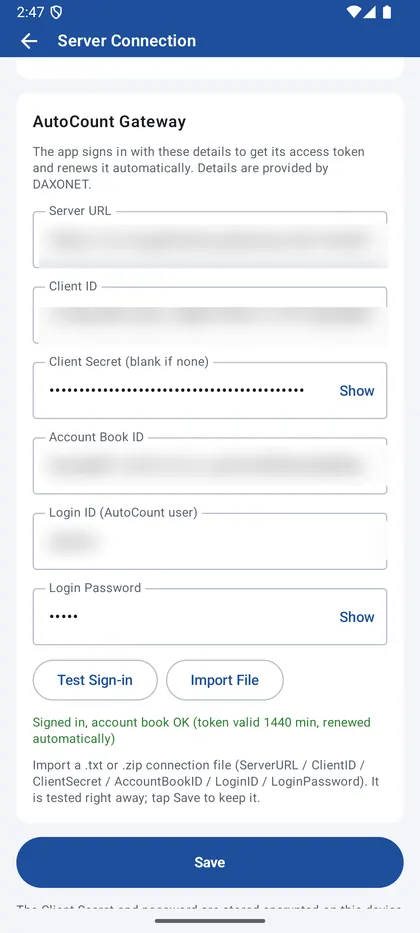
服务器连接
2. Sign in 登录
- Enter your user ID and password. The administrator adds or removes login IDs in Settings → Users & Password.
输入用户 ID 和密码。管理员在「设置 → 用户与密码」增删登录 ID。 - Forgot the password? Tap Forgot password? and give the code on screen to your administrator or support to get an unlock code.
忘记密码:按 Forgot password?,把画面上的代码交给管理员或客服,取得解锁码。 - Tap 中文 / EN at the top to switch the language.
按上方 中文 / EN 切换语言。
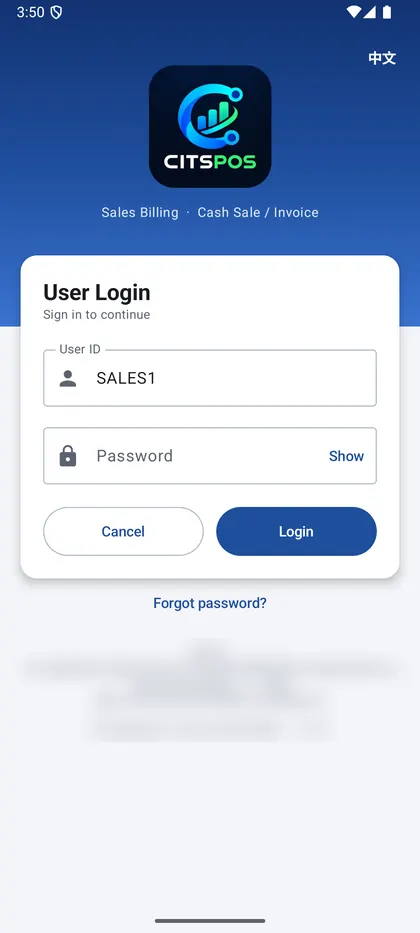
登录画面
3. Home screen 主页
- Each document type has New and View List: Cash Sale, Invoice, Sales Order and Receipt (OR). The administrator can hide types in Settings.
每种单据都有「新增」和「列表」:现金销售、发票、销售订单、收款 (OR)。管理员可在设置中隐藏不用的类型。 - Sync downloads customers, items and prices from your account book. Recent documents are listed at the bottom.
按 Sync 从账簿下载客户、产品和价格。下方列出最近的单据。 - Top bar: language, sync, 🔒 lock, settings and log out.
上方按键:语言、同步、🔒 锁定、设置、登出。
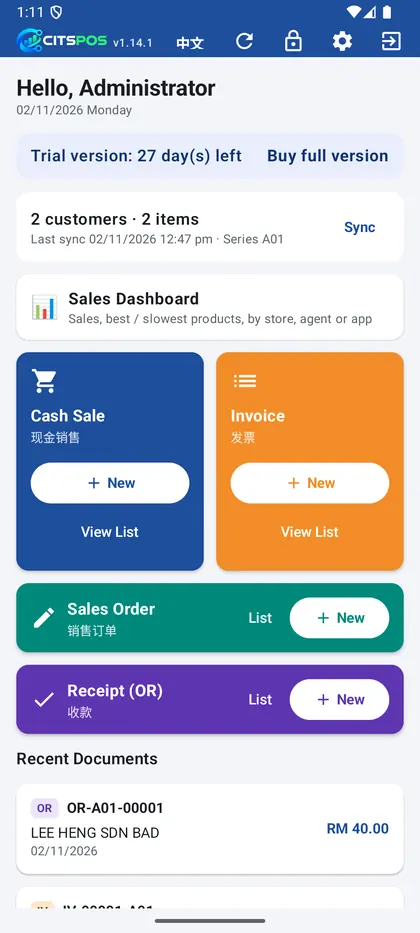
主页
4. Cash Sale and Invoice 现金销售与发票
- Tap New. Choose the customer (Cash Sale starts with the default cash customer), date and reference.
按「新增」。选择客户(现金销售默认用现金客户)、日期和参考号。 - Tap Add Item to search by code or name, or Scan a barcode. Change quantity, price and discount on each line.
按 Add Item 用编号或名称搜索,或按 Scan 扫条码。每行可改数量、单价、折扣。 - Items with serial numbers ask you to tick the serial numbers in stock.
有序号的产品会要求勾选库存中的序号。 - To remove an item, swipe it from right to left and tap Remove (or tap the 🗑 icon). Swipe right to close it again.
要移除产品,把它由右向左划,再按移除(或按 🗑)。向右划可收回。 - Draft keeps it to finish later; Save sends it to the account book.
Draft 先存起来稍后完成;Save 送进账簿。
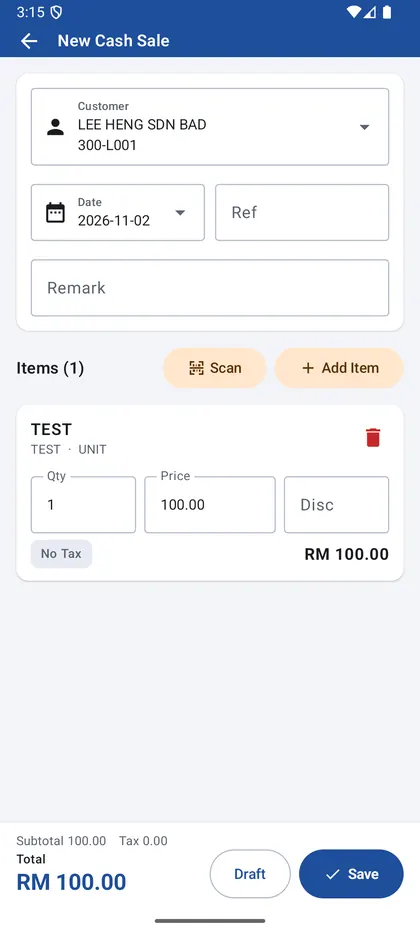
新增现金销售
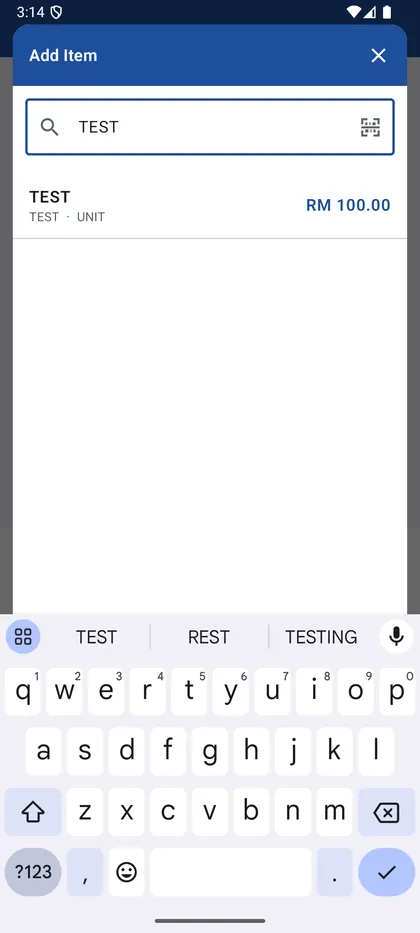
搜索产品
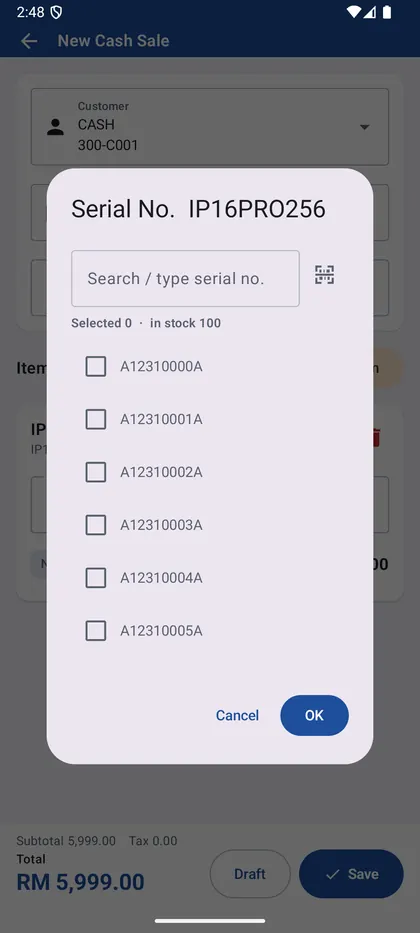
选择序号
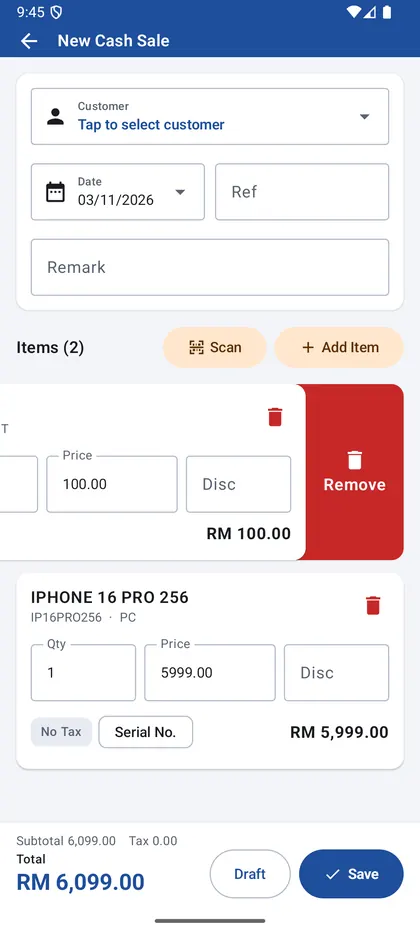
左划移除
5. Payment 付款
- On Save of a Cash Sale the payment window opens. Choose the method (cash, card, bank, e-wallet…) and the amount.
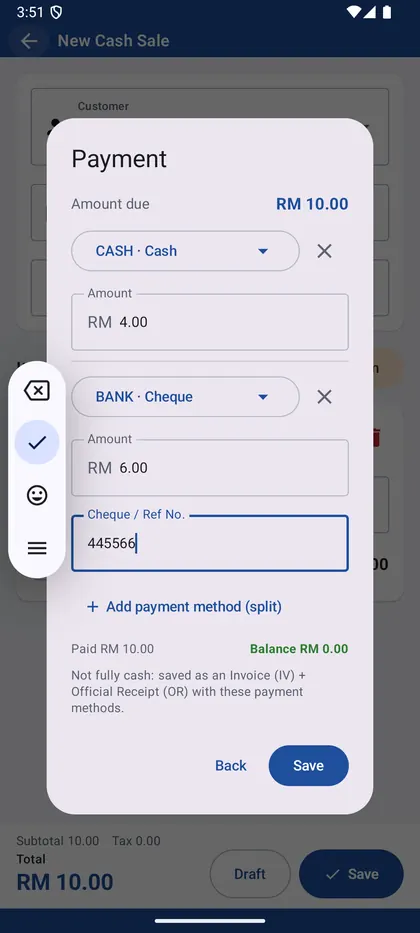
现金销售按 Save 后会打开付款窗口,选择付款方式和金额。 - Tap Add payment method (split) to pay with more than one method, e.g. part cash and part cheque (enter the cheque / reference no.).
按 Add payment method (split) 可用多种方式付款,例如部分现金、部分支票(输入支票 / 参考号)。 - Paid in full by one method: saved as a Cash Sale. Paid by several methods: saved as an Invoice plus an Official Receipt with those payments.
用一种方式付清:存成现金销售。用多种方式付款:存成发票 + 含这些付款的收款单。
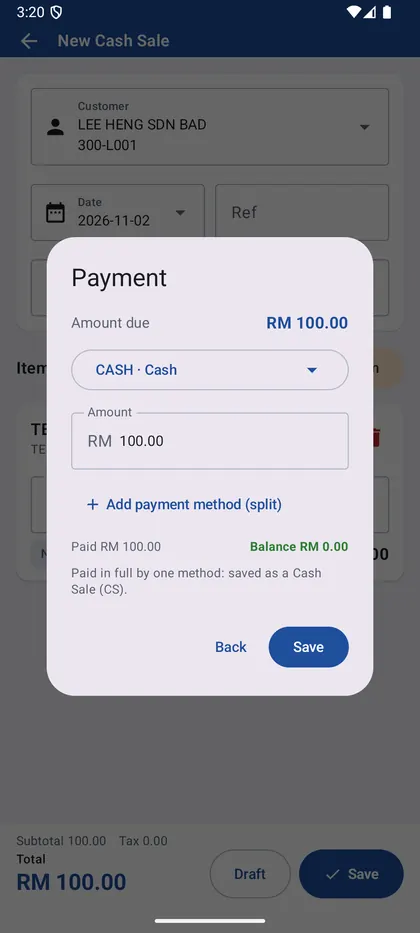
付款
分开付款
6. Documents, print and void 单据、打印与作废
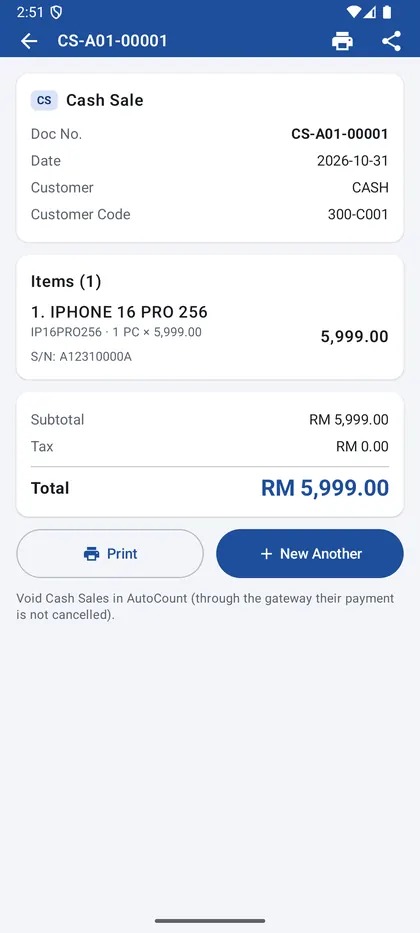
- Open any document from the list. Search by number, customer or reference, and filter by date or customer.
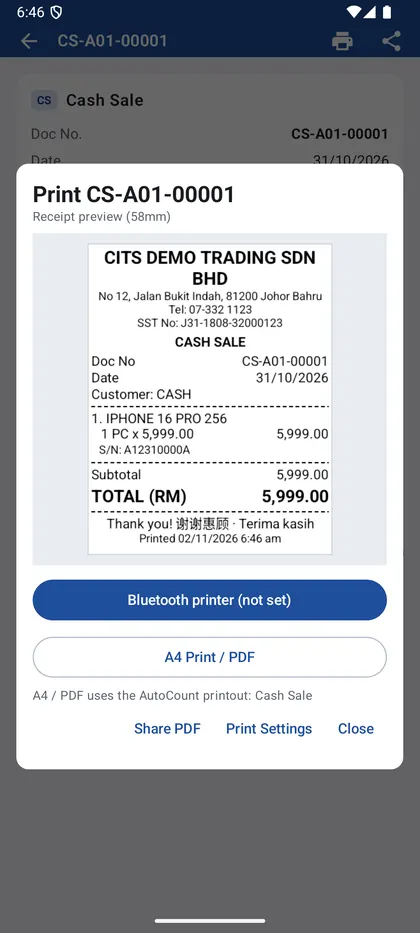
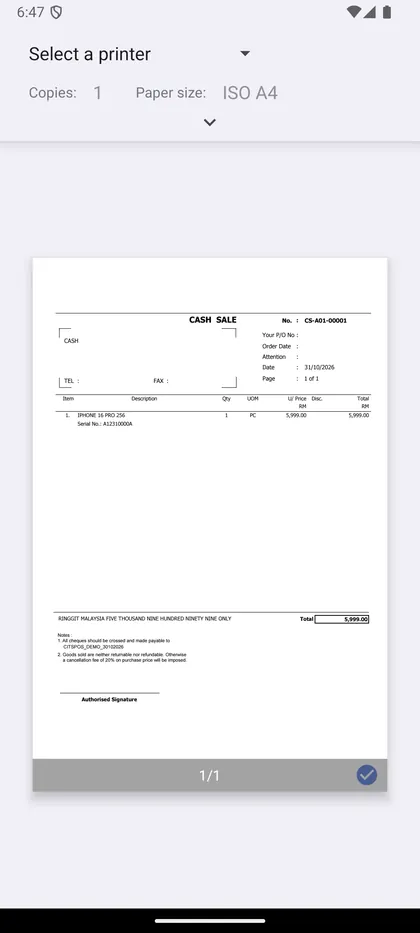
在列表中打开单据。可用单号、客户或参考号搜索,并按日期或客户筛选。 - Print: 58 / 80 mm Bluetooth receipt printer, or A4 Print / PDF using your account book's printout template. Share PDF sends it by WhatsApp, email and more.
打印:58 / 80 mm 蓝牙收据打印机,或 A4 Print / PDF(用账簿的打印模板)。Share PDF 可用 WhatsApp、电邮等分享。 - When a document has been submitted for e-Invoice, its validation QR code is printed on the receipt and the A4 printout.
单据已提交 e-Invoice 后,验证 QR 码会印在收据和 A4 上。 - Void cancels the document in the account book (the number is kept). It cannot be undone.
Void 会在账簿中作废单据(单号保留),不能还原。
单据
打印
A4 / PDF
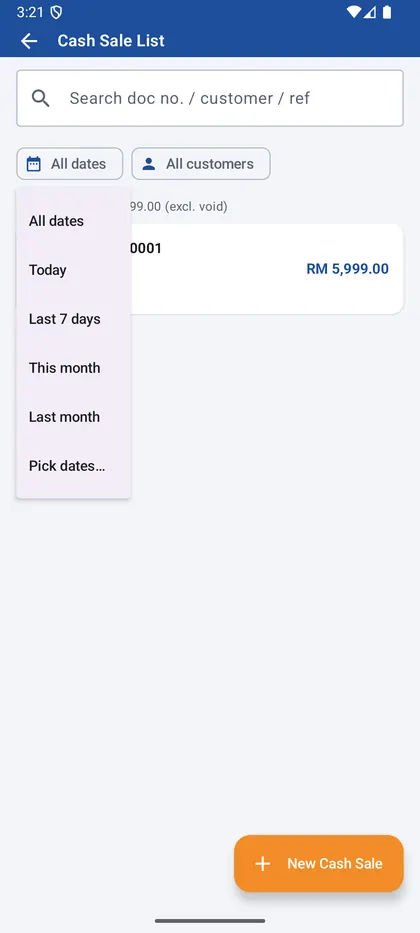
列表筛选
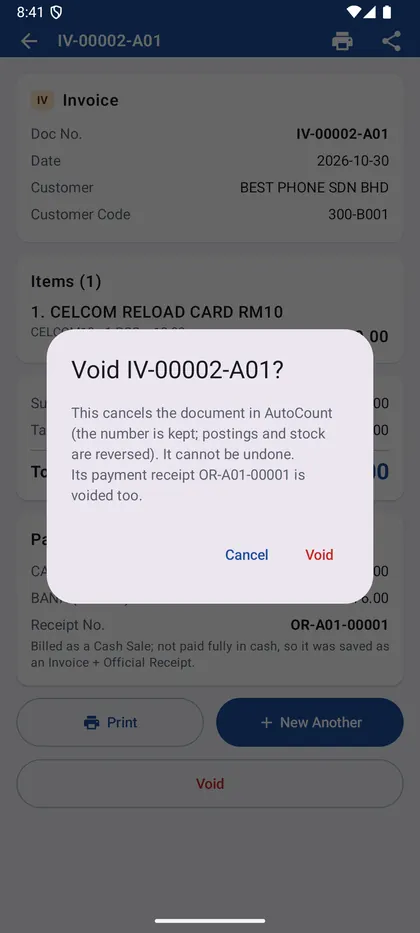
作废
7. Sales Order 销售订单
- Create a Sales Order like an Invoice. Open it and tap To Invoice or To Cash Sale when the customer takes the goods.
销售订单的开法和发票一样。客户取货时打开订单,按 To Invoice 或 To Cash Sale。 - The items and prices are copied from the order and cannot be changed there; the order is marked as transferred.
产品和价格从订单复制过来,不能修改;订单会标示为已转单。
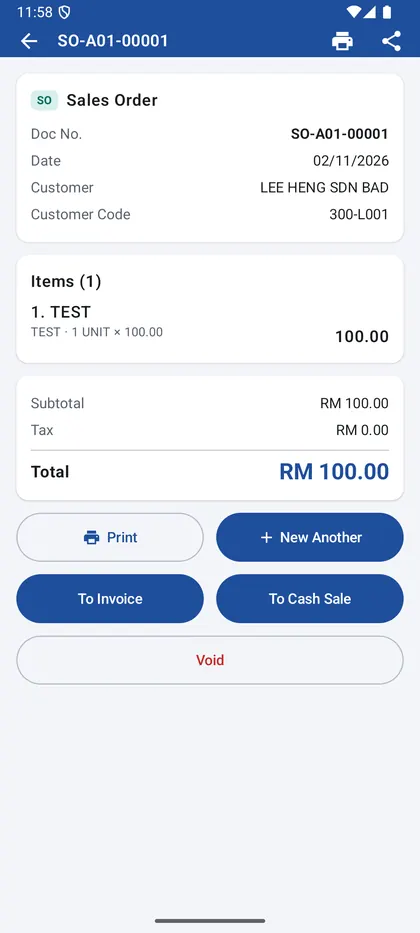
销售订单
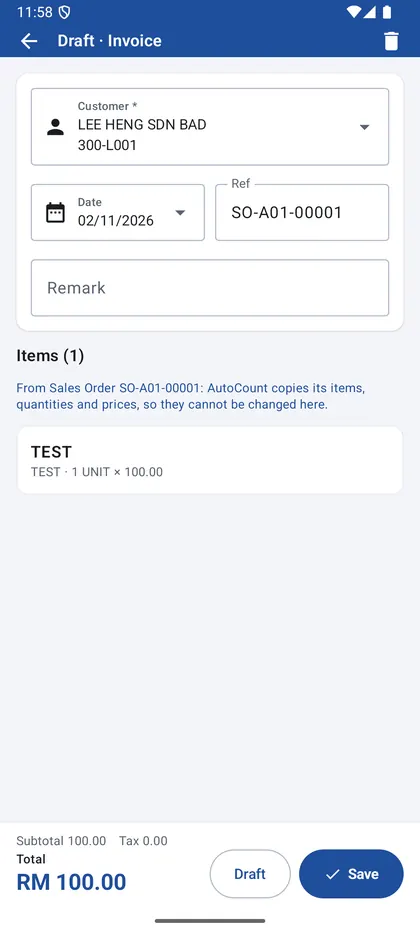
由订单转成发票
8. Receipt (OR): collect payment 收款单 (OR)
- Tap Receipt (OR) → New and choose the customer. All unpaid invoices and debit notes of that customer are listed, including ones not made on this phone.
按「收款 (OR) → 新增」,选择客户。会列出该客户所有未付的发票和 Debit Note,包括不是这台手机开的。 - Tick the documents to pay. For a part payment, change the Pay amount. Tap Receive and enter the payment.
勾选要付的单据;部分付款就改 Pay 的金额。按 Receive 输入付款。 - The receipt is knocked off against the ticked documents in the account book right away.
收款单会立即在账簿中冲销所勾选的单据。 - Print → A4 Print / PDF prints the official receipt: received from, the documents paid, payment and signature lines (choose Save as PDF to keep or send it).
打印 → A4 Print / PDF 印出正式收据:付款人、所付单据、付款方式和签名栏(选 Save as PDF 可存成 PDF)。
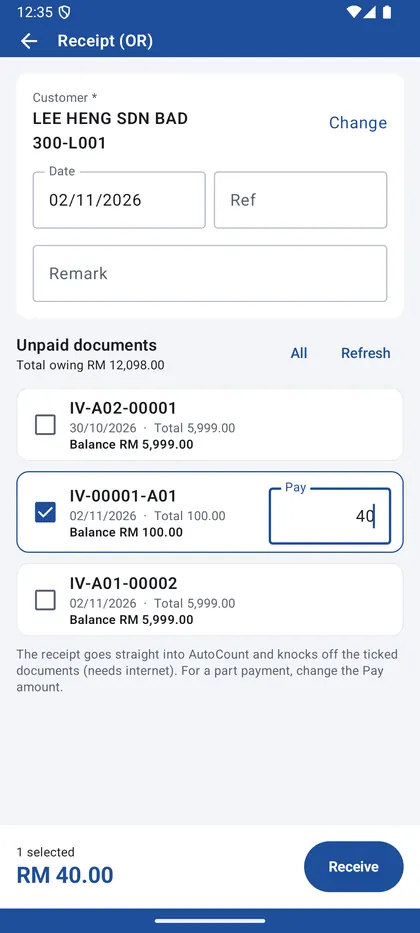
未付单据
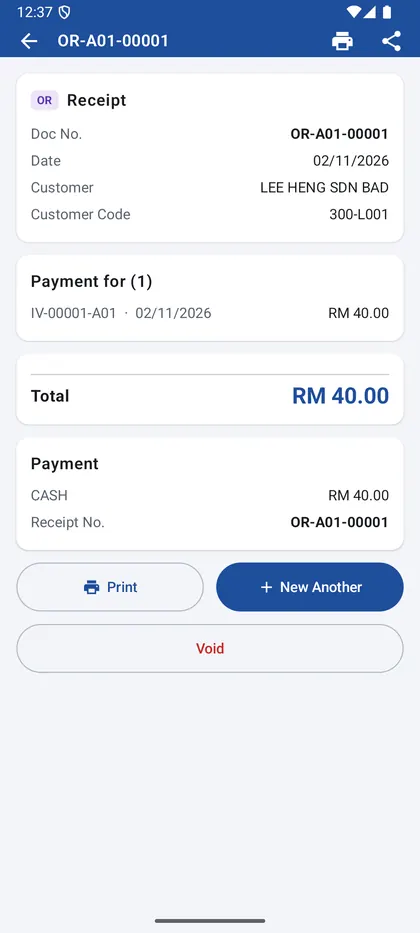
收款单
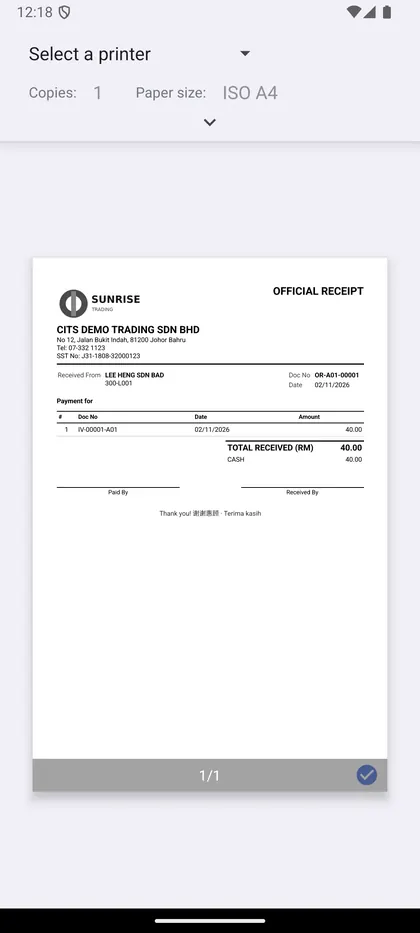
收据 A4
9. Receipt design and A4 template 收据设计与 A4 模板
- Settings → Printing → Receipt design: company name and address font size, bold and alignment, which lines to show, the footer and the e-Invoice QR size, for 58 mm and 80 mm.
「设置 → 打印 → 收据设计」:公司名称与地址的字体大小、粗体、对齐,显示哪些内容、页尾、e-Invoice QR 大小,分 58 mm 和 80 mm。 - Logo: tap Upload logo and choose a picture. Set its width and alignment; Shades as dots suits photos and light colours, off gives sharper black and white. A dark logo on a white or transparent background prints best. The logo is also printed on the app's own A4 layout.
Logo:按上传 Logo 选择图片,可调宽度和对齐;「深浅用点表现」适合照片和浅色,关掉则是更清楚的纯黑白。白色或透明背景的深色 Logo 打印效果最好。App 自带的 A4 格式也会印上 Logo。 - Backup saves the design (with the logo) to a file; Import it on other phones to use the same design.
Backup 把设计(含 Logo)存成文件,在其他手机 Import 即可使用同一个设计。 - A4 / PDF template: choose the default printout template for each document type.
A4 / PDF 模板:为每种单据选择默认的打印模板。
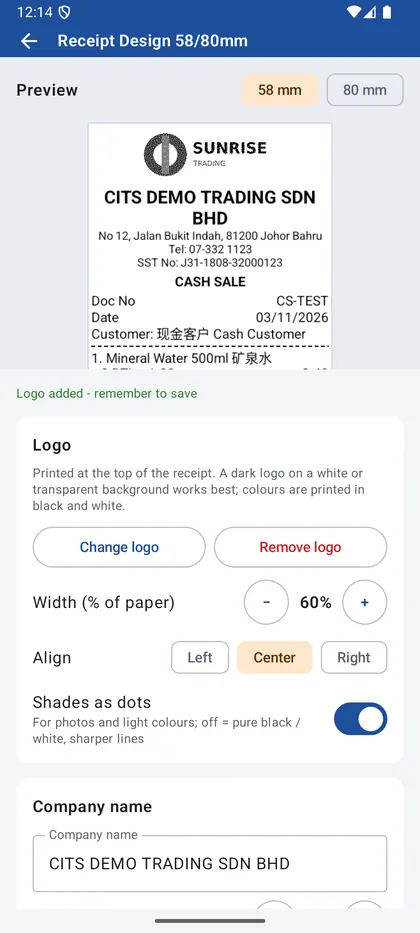
公司 Logo
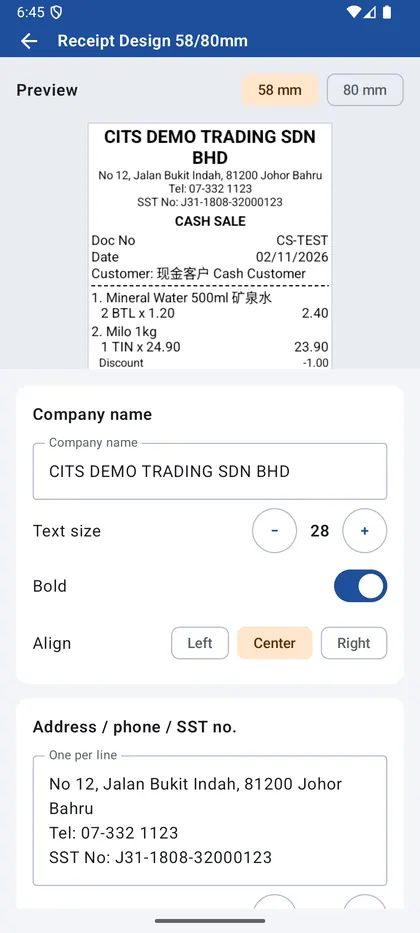
收据设计
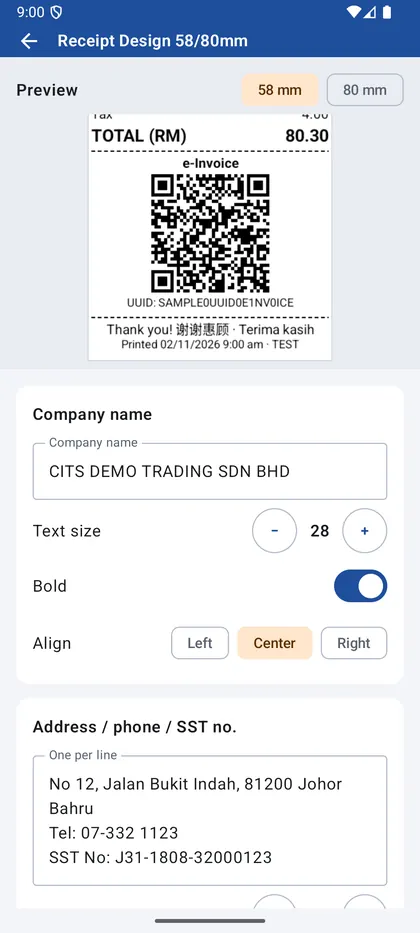
e-Invoice QR
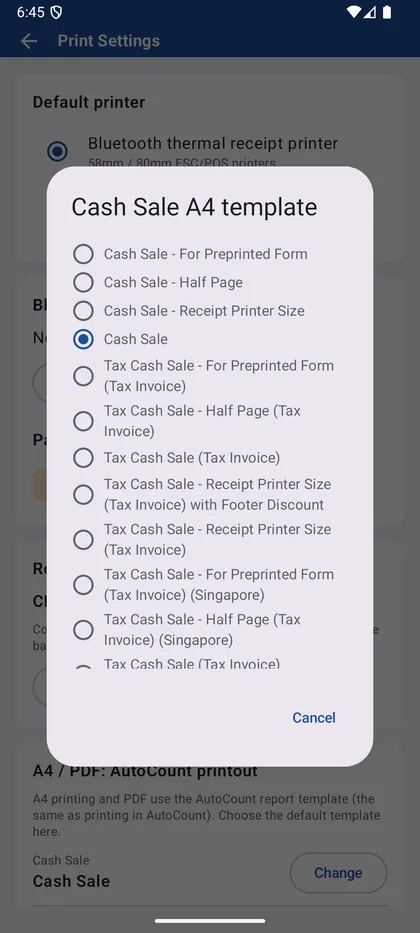
A4 模板
10. Sales Dashboard (administrator) 销售仪表板(管理员)
- Shows sales, number of documents, sales per day, best sellers and slowest sellers (items with sales).
显示销售额、单据数、每日销售、最畅销与销量最少的产品(有销售的产品)。 - Periods: today, yesterday, this week, this month, 3 months, 6 months, 1 year.
期间:今天、昨天、这星期、这个月、3 个月、半年、1 年。 - Scope: the whole shop, one store (Sales Location), one sales agent, or one app (phone series).
范围:全店、单一店面 (Sales Location)、单一业务员,或单一 App(手机单号系列)。
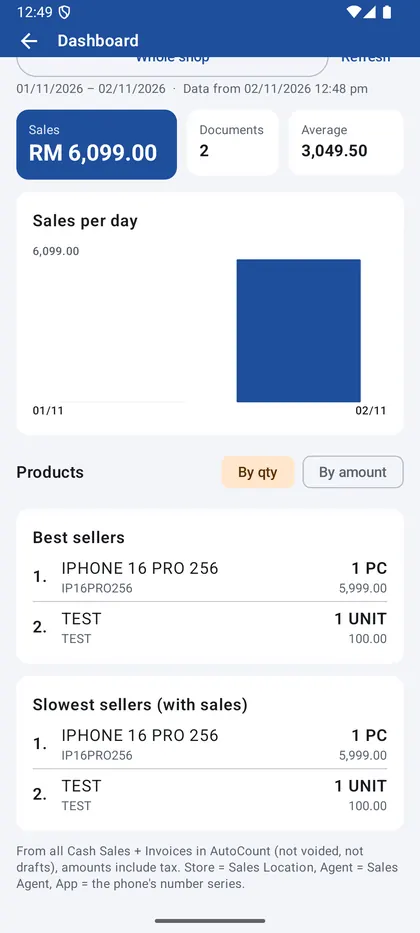
仪表板
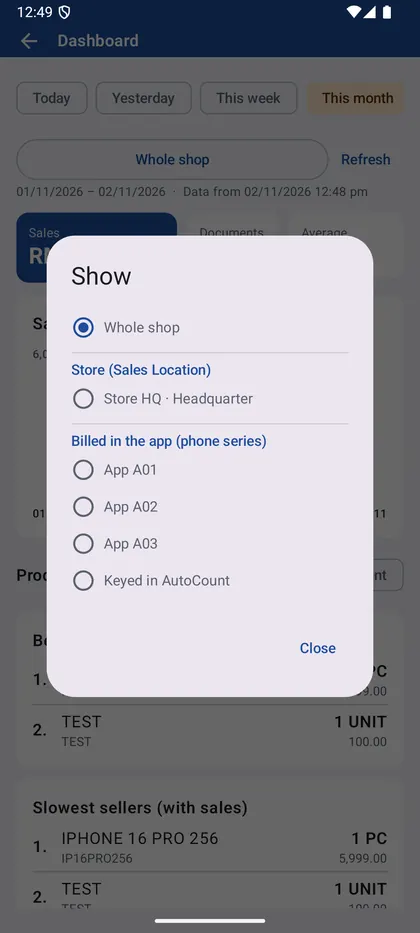
选择范围
11. Settings (administrator) 设置(管理员)
- Home screen switches choose which document types appear on the home screen.
「主页」开关决定主页显示哪些单据类型。 - Billing: default cash customer, this phone's store (Sales Location), the sales agent of each login ID, whether invoices are saved approved or as draft, and the document number format.
「开单」:现金销售默认客户、本机店面 (Sales Location)、每个登录 ID 的业务员、发票直接批准或存草稿,以及单号格式。 - Lock screen PIN: change the PIN used to release the 🔒 lock.
「锁屏密码」:更改解除 🔒 锁定的密码。 - App Update: shows the current version and checks for a new one (see App update).
「在线升级」:显示目前版本并检查新版本(见在线更新)。
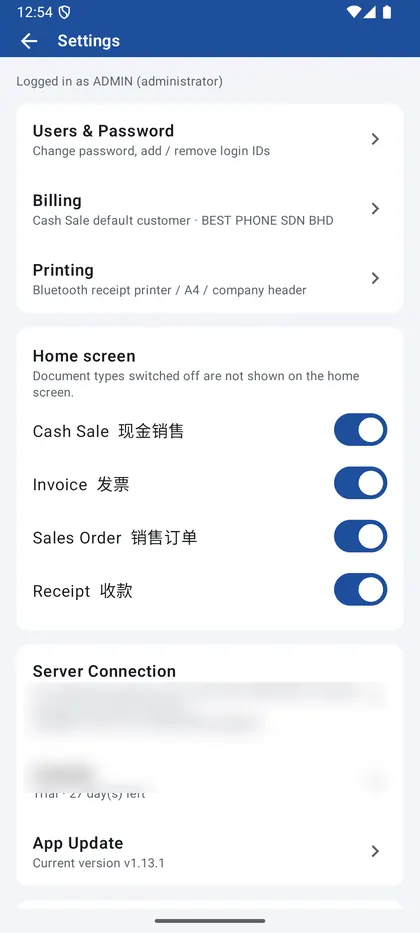
设置
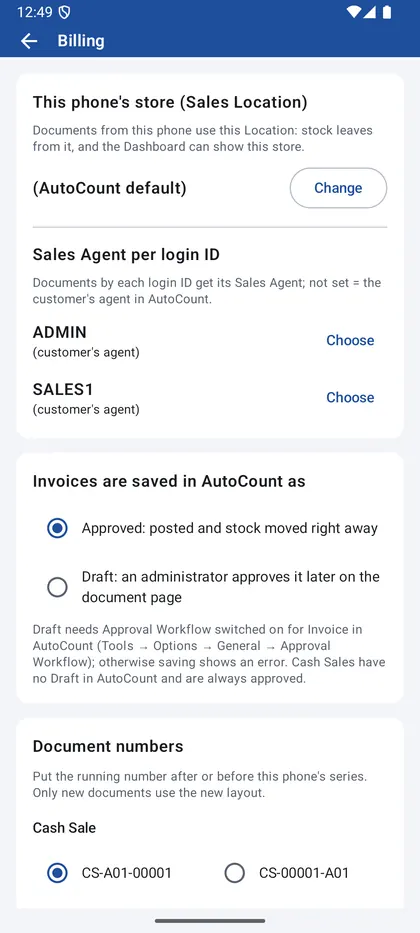
店面与业务员
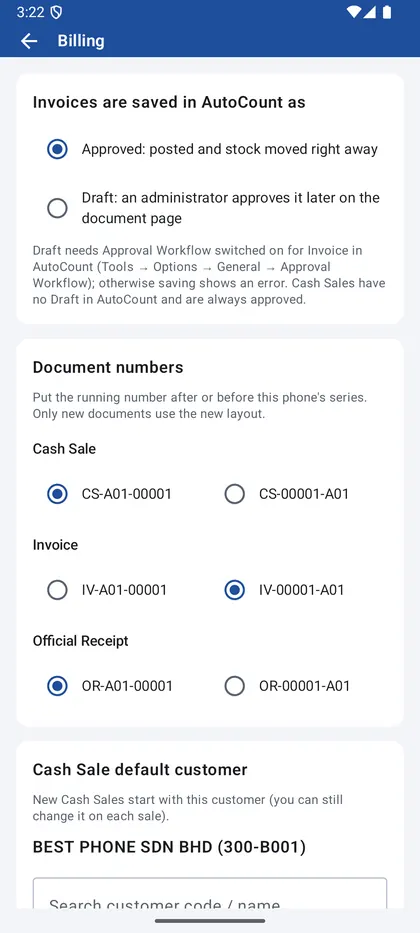
审批与单号
12. App update 在线更新
- The app checks for a new version by itself when it opens. When one is out, the home screen shows New version … is available and a window with What's new.
App 打开时会自动检查新版本。有新版本时,主页会显示「有新版本可更新」,并弹出窗口列出更新内容。 - Tap Update Now: the new version downloads, then tap Install. The first time, Android asks you to allow CITSPOS to install unknown apps: switch it on and go back. Your documents and settings are kept.
按立即更新下载,完成后按安装。第一次 Android 会要求允许 CITSPOS「安装未知应用」,打开后返回即可。单据和设置都会保留。 - Later hides the window; tap the banner on the home screen to update any time. A required update cannot be skipped.
按稍后可先关闭,之后按主页的提示随时更新。必须更新的版本不能跳过。 - To check by hand: Settings → App Update → Check for Updates. See what changed in each version on the release notes page.
手动检查:「设置 → 在线升级 → 检查更新」。每个版本的更新内容请看更新记录。
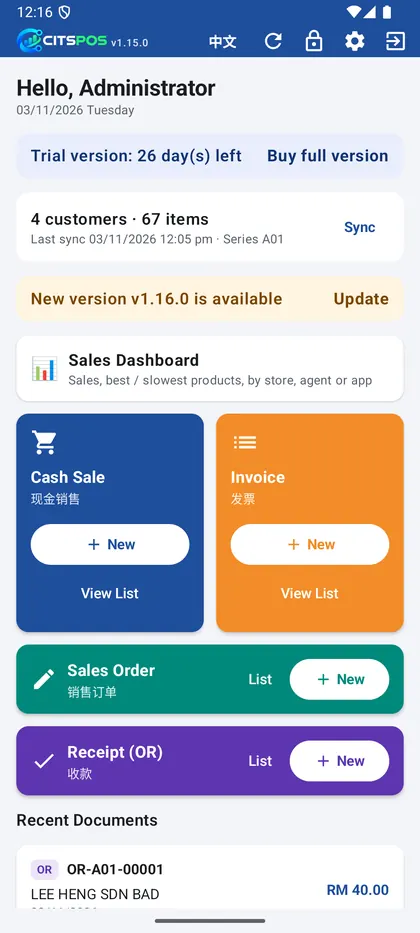
主页提示新版本
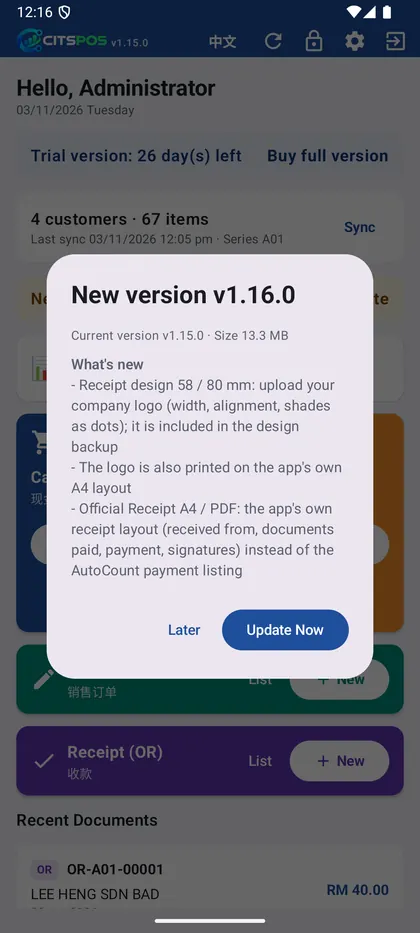
更新窗口
13. Lock the app at the counter 柜台锁定
- Tap 🔒 so the app cannot be swiped away; staff can still bill. Unlock with the PIN (default 0000).
按 🔒 后 App 不能被划走,员工仍可开单。用密码解锁(默认 0000)。 - For a tablet at the counter, see Counter device (full lock).
柜台平板请看柜台专用机(完全锁定)。
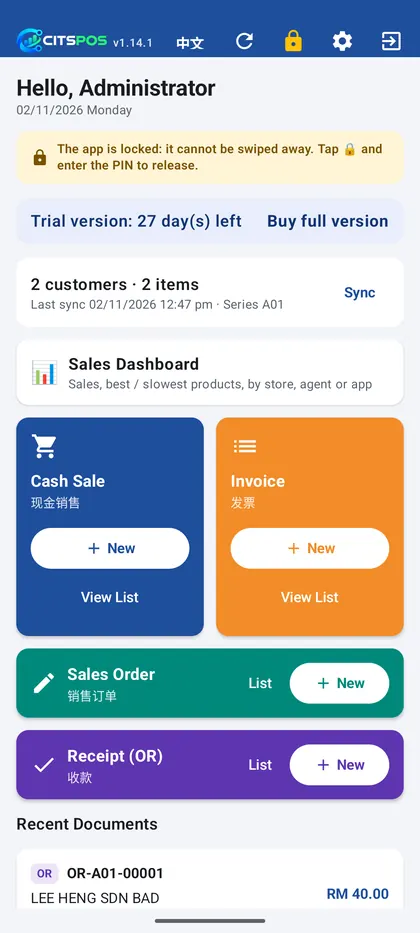
已锁定
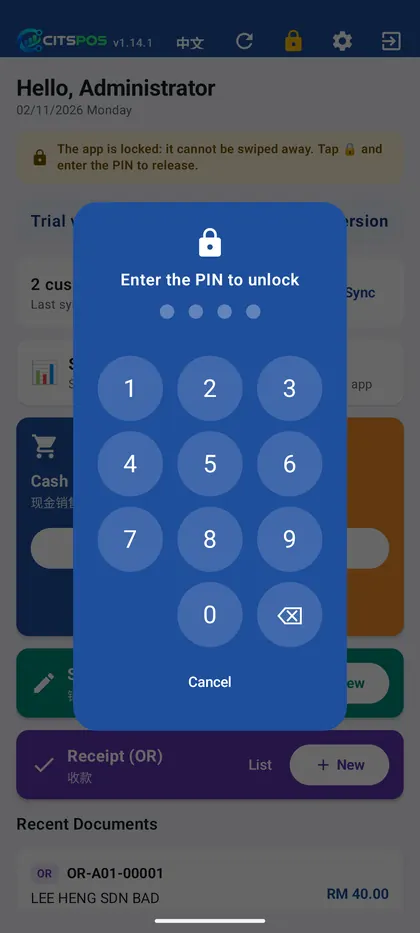
解锁